
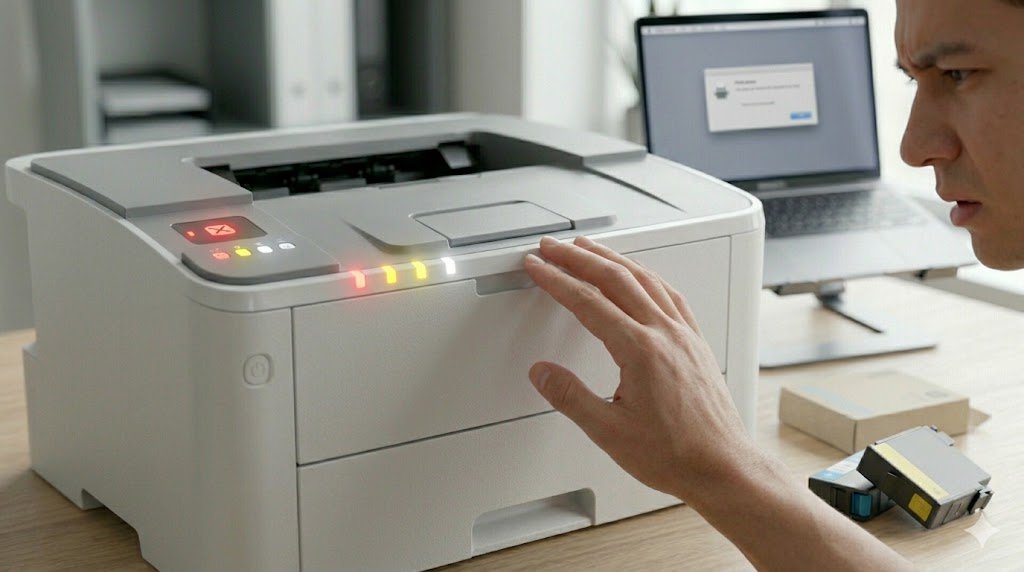
Printer indicator lights are your printer's way of communicating status and errors — but they can be cryptic if you don't know what the different patterns mean. Whether your printer's lights are blinking rapidly, glowing solid, alternating colors, or completely dark, this guide will help you decode and fix the issue.
Understanding Printer Light Patterns
Different lights on a printer typically correspond to different components or statuses. Common lights include:
- Power light: Indicates power status (on, off, sleep, error)
- Ink/toner light: Signals low ink, empty cartridge, or cartridge errors
- Paper/jam light: Signals paper-related issues
- Wireless/WiFi light: Indicates network connection status
- Error/attention light: General error indicator
Common Light Patterns and Their Meanings
Solid Green Power Light
This is the normal "ready to print" state. Your printer is powered on, connected, and waiting. If nothing is printing despite this, the issue is likely a software or queue problem. See our Printer Not Printing guide.
Blinking Green Power Light
Usually means the printer is actively processing or printing. A long green blink during startup is the printer initializing — this is normal. If it blinks green indefinitely without printing, the print job may be stuck in the queue.
Amber or Orange Blinking Light
This is a common error indicator. The exact meaning depends on the number of blinks:
- 1 blink: Paper jam, paper tray empty, or paper not loaded correctly
- 2 blinks: Carriage jam or print head problem
- 3 blinks: Service error or firmware issue
- 4–5 blinks: Ink absorber pad full (common on Epson printers)
Count the blinks carefully, then look up the exact pattern in your printer's user manual or the manufacturer's support website for model-specific meanings.
Alternating Green and Amber Blinking
On HP printers, this often indicates a firmware update in progress — do not turn off the printer. On Canon printers, alternating lights can indicate a serious internal error that requires a reset or service.
Rapid Blinking (All Lights)
Rapid simultaneous blinking across all lights usually indicates the printer is in a reset or recovery mode, or is experiencing a critical error like a motor failure or fuser problem.
No Lights At All
If pressing the power button produces no lights at all:
- Check that the power cable is properly seated at both ends
- Try a different power outlet
- Test the outlet with another device to confirm it's working
- Check for a blown fuse in the printer's power supply (requires technical knowledge)
- The printer may have suffered a power surge — check if it was plugged in during a storm
WiFi Light Blinking
A blinking WiFi light means the printer is searching for a network or attempting to connect. A solid WiFi light means it's connected. No WiFi light at all means wireless is disabled. See our WiFi Printer Guide to fix connection issues.
Brand-Specific Blinking Light Codes
HP Printers
- Orange light blinking once: Paper jam or paper out
- Orange blinking twice: Carriage stall
- Blue wireless light blinking: Searching for network
- Blue wireless light off: Wireless disabled
Epson Printers
- Red light solid: Maintenance required or ink pad full
- Red light blinking: No paper, paper jam, or cartridge error
- Power and ink lights blinking together: Printer needs servicing
Canon Printers
- Orange light: General error — count the blinks (2–17 blinks each indicate a specific error)
- Green power light blinking: Processing or warming up
Brother Printers
- Error light on: Check LCD screen for the specific error code
- All lights on: Power on reset — normal
- Toner light: Toner near empty or not detected
General Fixes for Blinking Light Errors
- Power cycle: Turn off, unplug for 60 seconds, plug back in and power on
- Check for paper jams: Open all doors and remove any paper
- Check ink/toner: Replace any empty or unrecognized cartridges
- Hard reset: Most printers have a factory reset option in the settings menu
- Update firmware: Download and install the latest firmware from the manufacturer's website
When Blinking Lights Mean Service Required
Epson printers in particular are known for blinking patterns that indicate the waste ink absorber pads are full. These pads absorb excess ink during cleaning cycles and have a finite capacity. Once full, the printer locks itself to prevent ink overflow. This requires either a service reset (using the Epson Adjustment Program software) or taking the printer to an authorized service center.