
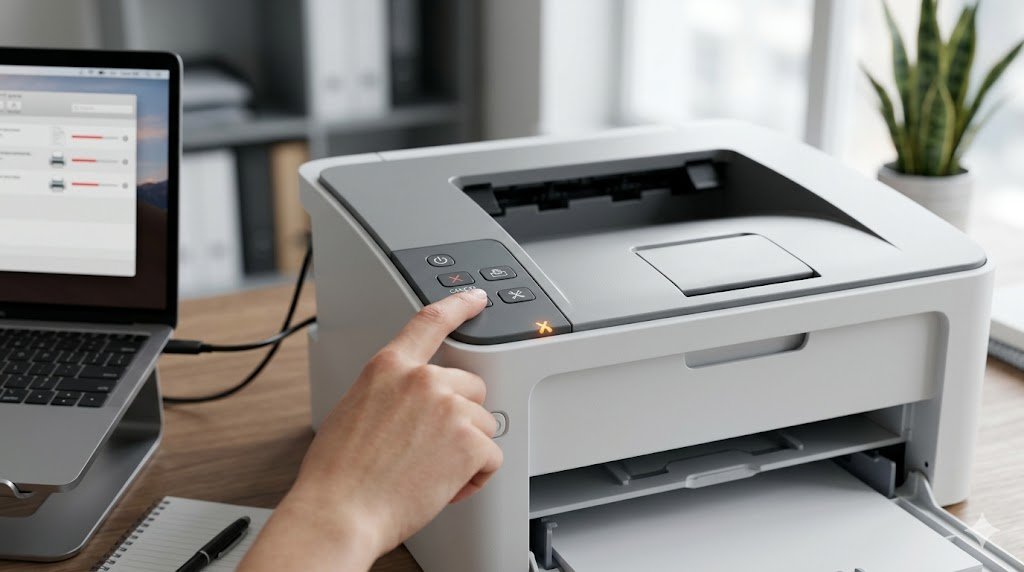
Your printer is turned on, paper is loaded, and you've sent the print job — but nothing happens. This is one of the most common printer frustrations, and the cause isn't always obvious. The good news is that most cases of a printer refusing to print can be resolved without calling a technician. Work through these 10 solutions in order to find and fix the problem.
Fix 1: Check the Obvious First
Before diving into software fixes, rule out the simple stuff:
- Is the printer powered on? Check that the power light is solid, not blinking
- Is paper loaded correctly in the tray?
- Is the USB cable securely connected, or is the printer connected to your WiFi network?
- Are there any error messages on the printer's display screen?
These quick checks resolve a surprising number of "printer not printing" calls.
Fix 2: Cancel All Print Jobs in the Queue
A stuck print job in the queue can block all subsequent jobs, making it seem like your printer isn't responding. Here's how to clear it:
- On Windows: Go to Settings → Printers & Scanners → select your printer → Open print queue
- Right-click each job and select Cancel
- If jobs are stuck and won't cancel, proceed to Fix 3
Fix 3: Restart the Print Spooler Service
The Print Spooler is a Windows service that manages print jobs. If it crashes, your printer will appear to do nothing:
- Press Windows + R, type services.msc, and press Enter
- Scroll down to find Print Spooler
- Right-click it and select Restart
- Once restarted, try printing again
net stop spooler then net start spooler as Administrator.Fix 4: Set the Correct Printer as Default
If you have multiple printers installed, Windows might be sending jobs to the wrong one. Go to Settings → Printers & Scanners, find your active printer, and click Set as default. Then try printing again.
Fix 5: Check Ink or Toner Levels
Printers often refuse to print when ink is critically low or empty. Open the printer software on your computer and check ink levels. Even if one color is empty, some printers won't print at all — even in black and white. Replace any empty or near-empty cartridges.
Fix 6: Update or Reinstall Printer Drivers
Outdated or corrupted drivers are a leading cause of print failures:
- Open Device Manager (search for it in the Start menu)
- Expand Printers
- Right-click your printer and select Update driver
- Choose Search automatically for drivers
If updating doesn't help, uninstall the driver completely, then download a fresh copy from the manufacturer's website and reinstall.
Fix 7: Restart Both Printer and Computer
This sounds trivial, but a full restart of both devices clears temporary glitches in memory and re-establishes communication. Turn off the printer using its power button, restart your computer, then power the printer back on. Try printing once both have fully booted.
Fix 8: Run the Windows Printer Troubleshooter
Windows includes a built-in troubleshooter that can automatically detect and fix many common printer issues:
- Open Settings → System → Troubleshoot → Other troubleshooters
- Find Printer and click Run
- Follow the prompts and apply any suggested fixes
Fix 9: Check the USB Cable or Network Connection
A damaged USB cable or an unstable WiFi connection can silently break printing without any obvious error message:
- Try a different USB cable or a different USB port on your computer
- For wireless printers, run a network diagnostic from the printer's menu to confirm it's connected to your WiFi
- Restart your router if the network connection has dropped
Fix 10: Reinstall the Printer Completely
If nothing else has worked, remove the printer entirely and add it back:
- Go to Settings → Printers & Scanners, select your printer, and click Remove device
- Unplug the printer's USB cable or disconnect it from WiFi
- Restart your computer
- Reconnect the printer and let Windows detect it fresh, or run the manufacturer's setup wizard again
When to Call for Help
If you've tried all 10 fixes and the printer still won't print, it may indicate a hardware problem — such as a failed print head, a blown fuse, or a damaged main board. At this point, contact the manufacturer's support line or take the printer to a certified repair center.