
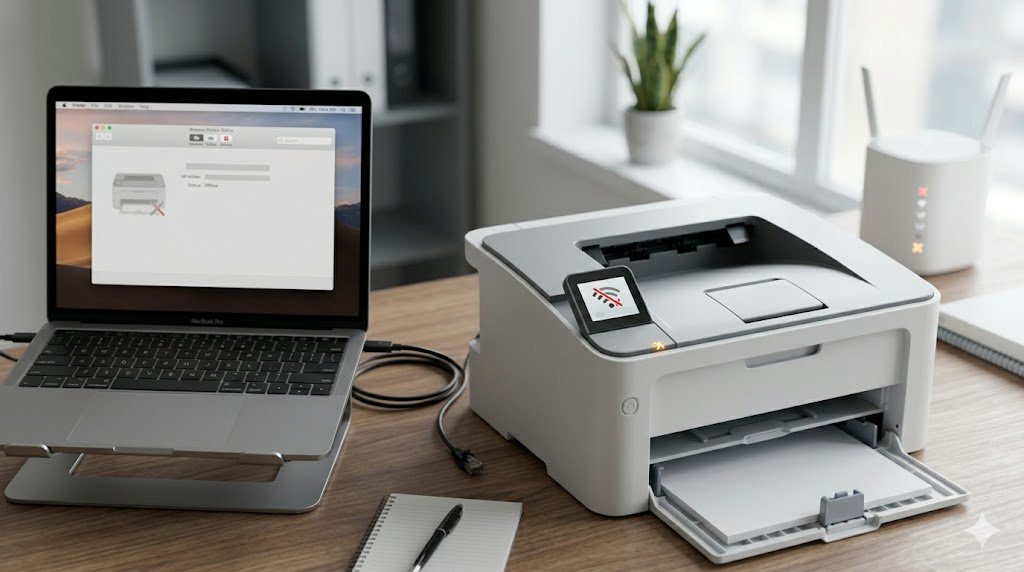
You open the print dialog, select your printer, and it shows "Offline" — even though the printer is clearly powered on and sitting right next to you. This is one of the most baffling printer issues because it makes no logical sense. Your printer is physically there, so why does Windows think it's offline?
The offline status is usually a communication breakdown between your computer and the printer. It's rarely a sign of serious hardware failure and is almost always fixable in a few minutes.
Why Does a Printer Go Offline?
Understanding the cause helps you apply the right fix:
- Network issues: For wireless printers, a dropped WiFi connection is the most common cause
- IP address change: Your router may have assigned the printer a new IP address after a restart
- Print spooler errors: The Windows print queue service may have crashed
- USB connection problems: A loose or faulty cable
- "Use Printer Offline" mode: This mode may have been accidentally enabled
- Driver issues: A corrupted or outdated driver can report the printer as offline
Fix 1: Disable "Use Printer Offline" Mode (Windows)
Windows has a setting that manually forces a printer into offline mode. It's easy to toggle this off:
- Go to Settings → Bluetooth & devices → Printers & scanners
- Click on your printer and select Open print queue
- In the print queue window, click Printer in the top menu
- If "Use Printer Offline" has a checkmark, click it to uncheck it
This alone fixes the offline status in the majority of cases.
Fix 2: Restart Printer and Computer
Power off the printer completely (not just sleep mode), restart your computer, then turn the printer back on. Give it 60 seconds to fully boot before trying to print. This clears temporary network and connection states that can cause false offline readings.
Fix 3: Check the WiFi Connection (Wireless Printers)
On your printer's control panel, go to Settings → Network and look at the wireless status. If it shows disconnected:
- Run the Wireless Setup Wizard from the printer's network menu
- Reconnect to your WiFi network by entering your password again
- Restart the router if the connection keeps dropping
Fix 4: Restart the Print Spooler Service
- Press Windows + R, type services.msc, press Enter
- Find Print Spooler in the list
- Right-click → Restart
- Check if the printer comes back online
Fix 5: Remove and Re-add the Printer
Sometimes the printer entry in Windows becomes corrupted. Removing it and adding it fresh resolves the offline status:
- Go to Settings → Printers & Scanners
- Click your printer → Remove device
- Click Add a printer or scanner
- Let Windows find your printer and add it again
Fix 6: Update Printer Drivers
Driver conflicts can trigger offline status, especially after a Windows Update. Visit your printer manufacturer's website, download the latest driver for your model, and reinstall it. This often resolves persistent offline issues that reappear after restarts.
Fixing Printer Offline on macOS
macOS handles offline printers slightly differently:
- Open System Settings → Printers & Scanners
- Select your printer — if it shows "Offline" or "Paused," click Resume
- If that doesn't help, remove the printer (click the minus button) and re-add it
- For network printers, verify the IP address hasn't changed by printing a network configuration page from the printer's menu
Preventing Offline Issues in the Future
- Assign a static IP address to your printer in your router settings
- Keep printer drivers updated
- Connect wireless printers to the 2.4GHz band for more stable connections
- Place the printer within good range of your router — walls and distance cause signal drops
- Avoid turning the router off frequently, as this causes IP reassignment