
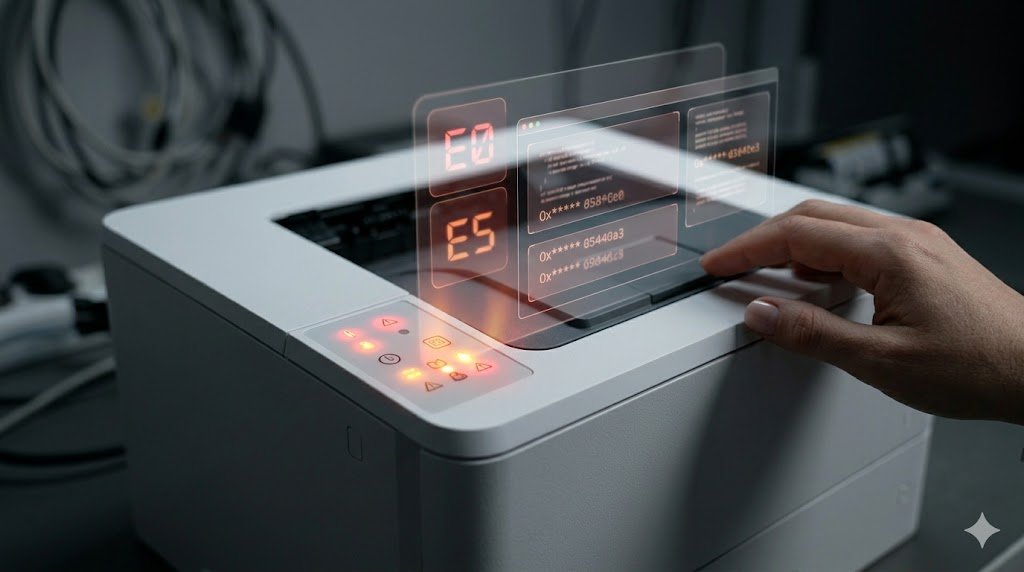
Printer error codes look cryptic, but they're actually a structured communication system your printer uses to tell you exactly what's wrong. Once you understand the code, the fix is usually straightforward. This guide covers the most common error codes across major printer brands — HP, Epson, Canon, and Brother — and explains what each one means and how to resolve it.
HP Printer Error Codes
Error 0x61011bed / 0x61011beb
What it means: Ink system failure or carriage jam. This is one of the most dreaded HP errors and often appears when the ink delivery system is severely clogged or the carriage can't move freely.
How to fix:
- Turn off the printer and unplug it
- Open the cartridge access door and manually check if the carriage moves freely
- Remove any obstructions (paper fragments, cartridge packing material)
- Remove all cartridges, wait 5 minutes, then reinsert them
- Power cycle the printer
- If the error persists, perform a semi-full reset: unplug the printer while it's on, wait 30 seconds, then plug back in while holding the Resume button
HP Error E0 / E3 / E4
- E0: No paper in the input tray. Load paper and press Resume.
- E3: Paper jam. Clear the jam following the steps in our Paper Jam Guide.
- E4: Ink cartridge jam or carriage stall. Open the access door, check for obstructions, and power cycle.
HP Error 49
What it means: A firmware or communication error. Often triggered by a corrupted print job or a software conflict.
How to fix:
- Cancel all print jobs in the queue
- Power off the printer and restart it
- If it happens repeatedly, update the printer firmware
- Test by printing from a different application or computer
HP Error 79
What it means: Firmware or critical internal error — similar to Error 49 but can also indicate a bad network print job.
How to fix: Clear the print queue, restart the printer, and update firmware. If you're printing from a network, try USB instead to isolate whether the error is network-related.
Epson Printer Error Codes
Epson Error Code 0xF3 / 0xE8
What it means: The ink absorber pad is full. Epson inkjet printers have a waste ink pad that absorbs excess ink during cleaning cycles. Once full, the printer locks itself to prevent ink overflow and damage.
How to fix:
- This requires either taking the printer to an Epson service center for pad replacement
- Or using Epson's Adjustment Program software to reset the waste ink counter (available from third-party sources — proceed with caution and at your own risk)
- Physically replacing the waste ink pads is also possible if you're comfortable with minor disassembly
Epson Error W-01 / W-11
- W-01: No paper detected. Load paper properly in the tray.
- W-11: Paper size mismatch. Adjust paper guides and settings to match the loaded paper size.
Epson Communication Error
What it means: The computer and printer cannot communicate. Often a driver or connection issue.
How to fix: Check the USB or network connection, restart both devices, and reinstall the printer driver.
Canon Printer Error Codes
Canon Error 5B00 / 5B01
What it means: Ink absorber pad almost full (5B01) or completely full (5B00). Similar to Epson's absorber pad error — this is a service message.
How to fix: Contact Canon's service support for an official reset, or use the Canon Service Tool (a third-party utility) to reset the counter. Physical pad replacement is also an option for technically inclined users.
Canon Error E02 / E03 / E05
- E02: No paper loaded or paper is not feeding correctly. Check the paper tray.
- E03: Paper jam. Refer to the paper jam guide to clear it.
- E05: Ink cartridge problem. Remove and reinsert the cartridge, or replace it.
Canon Error B200
What it means: Print head error — one of the more serious Canon errors, often related to a damaged or failing print head.
How to fix:
- Turn off the printer and unplug it for 10 minutes
- Remove the print head (if removable) and gently clean the contacts with distilled water
- Power cycle and try again
- If the error persists, the print head likely needs replacement (can be costly)
Brother Printer Error Codes
Brother Error Unable to Print / Init Unable
What it means: The printer's internal components (drum unit, toner) are not properly installed or have failed.
How to fix: Remove and reinstall the toner and drum unit. Make sure both click into place securely. Clean the corona wire inside the drum unit by sliding the green tab back and forth.
Brother Error Replace Toner / Toner Low
These are straightforward — install a new toner cartridge. If "Toner Low" appears but the cartridge is new, remove the cartridge, gently rock it side to side to redistribute toner, and reinstall.
Brother Error Drum End Soon / Replace Drum
The drum unit (a separate component from the toner in Brother printers) has reached the end of its rated lifespan. While it will still print for a while, you should plan to replace the drum unit soon. When you do, reset the drum counter in the printer's maintenance menu.
General Tips for Any Printer Error Code
- Power cycle first: A surprising number of error codes clear with a simple restart
- Check the display: Modern printers often show both a code and a short description — read both
- Consult the manual: Your printer's user manual has a dedicated error code section specific to your model
- Visit the manufacturer's website: Search your printer model + error code for official resolution steps
- Check for firmware updates: Some error codes are caused by firmware bugs and are fixed in newer updates